
To set up Gold4K IPTV on IPTV Smarters Pro, first check that your subscription includes a login format your installed app accepts. For an Xtream Codes login, you need a server address, username and password. For an M3U login, you need the complete playlist link and an app version that offers that option.
IPTV means television delivered over an internet connection. Smarters is the player you use to open the service; it does not supply the subscription. The developer’s setup instructions explain that you obtain subscription credentials from your provider. Credentials are the details that identify your account and let the app connect.
This guide covers adding an account in Smarters versions with an Xtream Codes or M3U login option. The newer app is listed as Smarters Pro, while older installations can display IPTV Smarters Pro. The screen layout and available features can differ, so follow the matching login option on your device rather than expecting identical buttons everywhere.
Check which Gold4K login details you have
Find the activation message for your subscription or trial before opening the app. Your Gold4K website account, reseller-panel account and viewing subscription serve different purposes. Use the viewing details supplied for your player.
| Details you received | What they mean | What to do in Smarters |
|---|---|---|
| Server address, username and password | An Xtream-style login, if confirmed by your provider | Choose the matching Xtream Codes login option |
| One complete M3U playlist link | A link that lets the player load a media list | Use the M3U option if your app offers it |
| Portal address and MAC activation instructions | A setup that identifies an activated device or app | Ask for a Smarters-compatible login before following the steps below |
Xtream Codes is a login method that connects a player using separate server and account details. M3U is a playlist format containing links to media. A MAC address is an identifier used for a device or app in some activation systems.
A portal address and MAC registration do not, by themselves, supply the username and password required by an Xtream login form. Do not enter a MAC address as your username or assume that changing the app will convert the account. Tell Gold4K support your device, installed app and the type of details you received, then ask which login method to use.
The developer’s playlist documentation describes different login choices across platforms. Check your installed version before requesting an M3U link specifically for a television.

Install the correct Smarters app
Start from the Smarters developer’s download section, which links to its device-specific releases. Several apps use similar names; the listing and developer matter more than the icon alone.
| Device | Installation starting point | Detail to check |
|---|---|---|
| Android phone or tablet | Smarters Pro – Mobile on Google Play | Developer listed as Tech Smarters |
| Android TV or Google TV | Smarters Pro TV listing on Google Play | Select the TV release rather than the phone release |
| iPhone or iPad | Smarters Pro on the App Store | Use the listing reached from the developer’s website |
| Other televisions or computers | Developer’s download section for your platform | Confirm your model, operating system and available login options |
An operating system is the software platform running the device, such as Android or Windows. A Samsung or LG television should not be treated as an Android TV simply because it is a smart TV. Nor should you assume that an Android installation file works on every television.
For a Fire TV Stick, confirm the installation source for your exact model before proceeding. This guide does not prescribe a Downloader code or an unverified installation file.
App purchases are separate from Gold4K service charges. The developer describes its premium upgrade as unlocking player features, not providing a media subscription. Check any charge displayed by your installed version before paying.
Add Gold4K using a username and password
Use this route only after receiving a server address, username and password confirmed for Smarters. Keep the activation message open while entering them.
- Open the app’s account or playlist setup screen. Choose the option labelled Xtream Codes, Xtream Codes API or the corresponding username-and-password login in your version. API means a way for the player and service to exchange information.
- Name the profile if requested. “Gold4K” is a useful label for recognising the account later; it does not replace your username.
- Enter the viewing username and password. Copy them from the activation message. Preserve capital letters and remove accidental spaces introduced when copying.
- Enter the supplied server address. Use the complete address exactly as instructed, including
http://orhttps://and any supplied port. A port is the number after the address that specifies a connection endpoint. Do not substitutegold4kpanel.commerely because it is the website where you ordered. - Submit the profile and let it load. Use the save, add or login control shown by your app. Then open an available live channel to check playback.
These are the actions for a compatible login form, not a promise that every Smarters release uses the same button names. The developer’s cross-device guide confirms that provider details are needed to add your content.
Do not change the address from HTTP to HTTPS, remove a supplied port or invent an address suffix to fix an error. Ask for the current supported address if the original details fail.
Add an M3U playlist when supported
Use this route when Gold4K supplies a complete M3U link and your installed Smarters version offers a playlist-URL option. URL means the full address of a resource, such as your playlist.
Open the playlist setup screen, select the M3U or playlist-URL option, enter a recognisable profile name if requested, and paste the complete link into the URL field. Save it and allow the list to load. Do not paste a full playlist link into the separate Xtream server-address field.
Treat the playlist link as private account information. It can include your username and password, so hide the full link before sharing a screenshot in a public group. Ask for a replacement through support if you have exposed it.
Check playback before choosing a longer plan
Use the 24-hour Gold4K trial to check the device and content you actually intend to use. Browse the channel list for reference, then confirm your preferred channels during the trial rather than relying on a total channel count.
Check several live channels, any included on-demand content you want, audio and subtitles where available. On-demand content means programmes you select to play rather than watching a scheduled live broadcast. Try the setup at your usual viewing time; a successful login alone does not establish that every stream plays well on your connection.
Do not treat “4K” in a brand name as a guarantee that every channel is delivered in 4K resolution. Gold4K’s subscription page explains that availability and picture quality vary by channel, device and internet connection.
Fix problems by symptom
Login fails or says the details are invalid
Compare the saved username, password and server address with the activation message. Check for extra spaces, a missing supplied port and an incorrect login method. Confirm that the trial or subscription is active. Buying an app upgrade will not correct an expired service account or the wrong connection details.
If the same details still fail, send support the exact error, device model, app name and version. Keep passwords out of public screenshots. Request confirmation of the login format and current address rather than trying addresses found on unrelated websites.
Login succeeds but no channels appear
Check which profile is selected and use its reload or refresh option if your version provides one. Note whether the list is completely empty or only one category is missing. That distinction gives support a more useful starting point than “the app does not work.”
Avoid deleting the profile until you have the original login details available to add it again.
A channel buffers or will not play
Buffering is a pause while the player waits for more video data. Try another channel first. If only one fails, record its exact name and the time; if every channel fails, check the internet connection and restart the player and device.
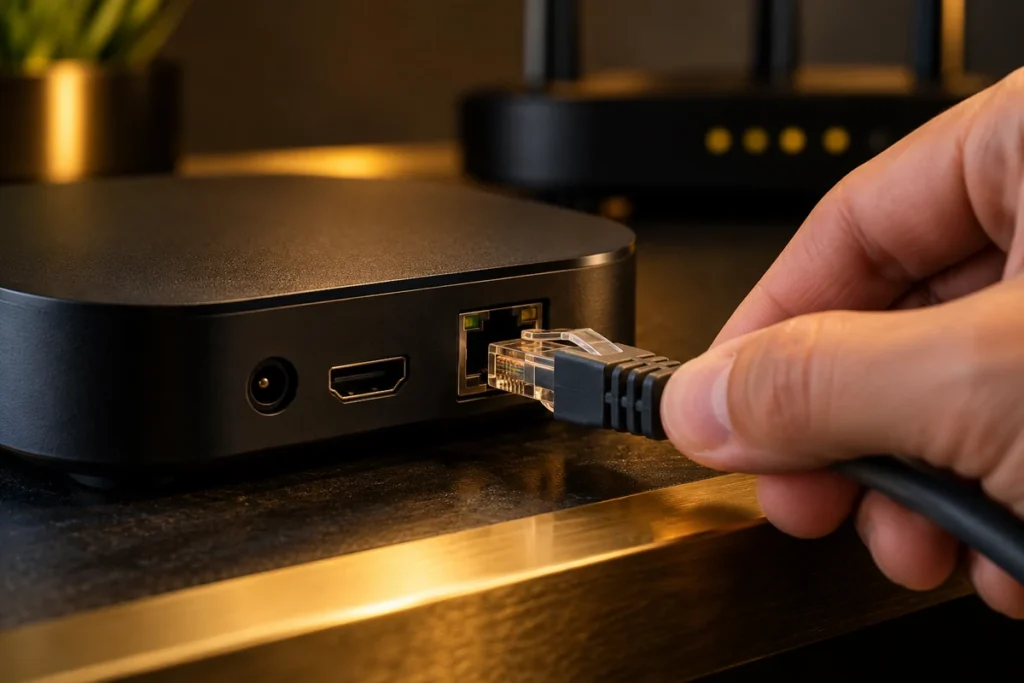
As a diagnostic step, reduce other large downloads or try a wired connection where your device supports one. These checks help isolate the problem; they do not guarantee a fix or prove the service is at fault.
Some current Smarters releases offer alternative playback engines. A playback engine is the part of the app that decodes and displays video. The Android TV listing mentions integrated VLC and decoder options, while the mobile listing mentions player selection. Try an available alternative for a specific playback failure rather than assuming every version has the same settings.
The app crashes or will not open
On Android, restart the device and update the app before reinstalling it. Google’s app troubleshooting instructions also cover force stopping and clearing cached files. Cache means temporary files the app stores to avoid downloading the same information repeatedly.
Keep your login details before clearing app data or uninstalling. Those actions can remove saved profiles, whereas clearing temporary files is a narrower first step. Follow your device’s settings because menu locations differ.
Conclusion
Start with the Gold4K account format, then choose the matching Smarters login. Use separate server, username and password fields for a confirmed Xtream account, or the complete playlist link when your app supports M3U. MAC-based activation instructions need clarification before either route.
Request a trial with your device and app named, then check your preferred channels and playback before choosing a longer subscription. If setup fails, report the exact symptom and account format through Gold4K support so the next step addresses the actual problem.